We can't find the internet
Attempting to reconnect
Something went wrong!
Attempting to reconnect
Analysis Summary
Ask yourself: “Did I notice what this video wanted from me, and did I decide freely to say yes?”
Worth Noting
Positive elements
- This video provides practical, copy-pasteable Zsh configurations (like suffix aliases and the edit-command-buffer widget) that genuinely solve common terminal frustrations.
Be Aware
Cautionary elements
- The sponsorship is clearly disclosed, but the narrative suggests that mastering these specific tools is a prerequisite for professional 'leveling up'.
Influence Dimensions
How are these scored?About this analysis
Knowing about these techniques makes them visible, not powerless. The ones that work best on you are the ones that match beliefs you already hold.
This analysis is a tool for your own thinking — what you do with it is up to you.
Related content covering similar topics.
Transcript
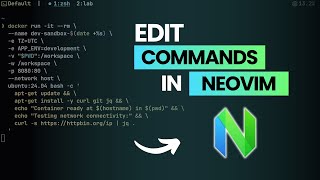
When it comes to developing software, I like to do so inside of the terminal using my shell of choice, Zshell, which I've been using now for just over 10 years. Whilst I've done a video already covering my general Zen Zshell setup, there's a few little tips and tricks that I've picked up over the years that help me speed up my workflow when it comes to working in the terminal. Whether it's fixing mistakes I make inside of the command buffer, creating keyboard shortcuts to automate common actions, or simply reducing the amount I need to type in order to open up files using my favorite CLI tools. Therefore, in this video, I'm going to share 10 of my favorite Zshell hacks, ones that I wish I knew back when I first started working in the terminal. The first item on this list is one that's an absolute gamecher when it comes to typing out long commands, especially if, like me, you sometimes make mistakes. Picture this. You're writing a long CLI command and you realize you made a mistake about three lines back. In the past, I would normally fix this by navigating using the Zshell key bindings followed by fixing the actual mistake. All of which feels extremely inefficient. If all of this sounds familiar, then fortunately, there is a much more efficient way, which is to make use of a widget called edit command buffer. This widget allows you to open up the command buffer inside of your configured text editor uh which in my case is neoim where I can easily correct the mistake using my vim keybindings and the changes will be applied to my command buffer. In my case, I've bound this widget to the keybinding oftrl x followed by control e which has been configured using the following three lines found inside of my zshell rc. Personally, I find using the edit command buffer to be incredibly powerful when it comes to working in the terminal and typing out longer commands, especially when modifying parts of a previous command or resolving any mistakes. However, whilst editing the command buffer in a text editor is really powerful, it can't protect you from every mistake that you might make. For example, one mistake I often find myself doing is when using thetrl +w keys to delete a previous block of text, which sometimes accidentally deletes more than I was anticipating. In this case, opening up the edit command buffer won't save me. Uh, but fortunately, that's where this next item comes in, as I can just go ahead and press control and underscore, and it will undo the last action that I took. Yes, Zshell has undo, and it's something I absolutely wish I knew about much, much earlier. In addition to undo, Zshell also has a widget to undo an undo, which colloquially is called redo. However, by default, this doesn't have a key binding, and personally, I tend to not find it that useful, and so I haven't really set one up. This contrasts compared to the next hack on this list, however, which I think is something absolutely worth binding. This is the magic space widget which allows you to expand any historical command. To show what I mean, here I have a classic command inside of my Zshell terminal, which if you were unaware of beforehand, well, you get this one for free. This command is used to execute the previous command from your shell's history. Uh, but doing so using pseudo, which is really useful when I accidentally forget to type pseudo for a command that requires it. Despite its usefulness, however, there is one caveat that I find when running this command in that if you're not 100% sure what the previous command actually was, then you're effectively playing Russian roulette. Fortunately, because I've bound magic space to my space key, then all I need to do is press it, and it will automatically expand the historical command to show me exactly what will be executed. Uh, which in this case is a good thing. As I mentioned, the magic space widget is used to expand any historical command, such as referencing a command by its index, pulling out all of the arguments from a previous command, or even when searching for the last command that contains a specific string. If you use OMI Zshell or other similar plugins, then magic space usually comes bound by default, as well as a similar behavior whenever you press the tab key. But once you graduate to writing your own configuration, then the magic key widget is definitely worth knowing. Okay, so the fourth hack on this list is one that I've always struggled to find a good use for, but recently I've managed to find not one but three. This is the chpwd hook, which allows you to execute a command whenever you change into a different directory. To short, I mean, if I go ahead and add in the following code into my zshell rc, which sets up chpwd so that it executes ls, followed by then opening up a new shell window. Now, every time I change into a different directory, the ls command is executed, showing me that directory's contents. As I've mentioned before, I've always struggled to find a good use for the chpwd hook. That is until I started to use Nyx/NixOs. Now, I have a simple hook that will automatically load a Nyx develop shell whenever I enter a project directory that contains a Nyx flick and provided I'm not inside of a Nyx shell already. Whilst there are other tools out there to achieve this, it's still really nice to have this functionality baked into Zshell, especially if you care about your systems bloat. In addition to Nyx shells, the second way that I like to use the CHPWD hook is when it comes to Python projects that have a virtual environment, as you can easily configure a hook to automatically load it whenever you enter a directory that contains one. One thing to mention is that you can only define a single CHPWD hook function, which means in order to have multiple behaviors, you either need to place all of these inside of a single definition, or better yet, you can use the add zshell hook widget, which allows you to add any defined functions into a single given hook. You can find an example on how to do this in a GitHub gist I've linked in the description down below. As for my third use of CHPWD, well, this is for any Node.js JS projects that make use of the node version manager uh specifically when they define a mvim rc inside of their directory. In this case, this hook will automatically call the mvim use command, making sure to set up and use the correct node version for that specific project. This last use case has been especially useful recently as I've been writing more and more code using TypeScript. Speaking of which, if you yourself are looking to learn Typescript and you also happen to like playing role- playinging video games, then there's a good chance that you might be interested in the sponsor of today's video, Boot.dev. Boot.dev is an online platform that will teach you the skills to become a back-end web developer using either TypeScript or Go. However, unlike traditional e-learning platforms, boot.dev does this by trying to make the whole experience enjoyable rather than being just a grind. They achieve this by taking concepts from role- playinging video games. Meaning that whilst you're learning to code, you'll also be gaining experience points, leveling up, obtaining achievements, and competing for first place on the global leader board. If all of that sounds too good to be true, then fortunately, you don't have to take my word for it, as all of the material on boot.dev is both free to watch and read. However, if you do want to make use of the interactive features such as code challenges, AI assistance with Boots the Magical Wizard Bear, and all of the game-like features that I mentioned before, then you can get 25% off your first purchase by using my coupon code dreams of code when you check out. That's 25% off either your first month on a monthly subscription or your first year on an annual one, which is a really great deal. Not only that, but if you happen to find that the platform just doesn't work for your style of learning, then there's no risk as boot.dev dev offer a no questions asked money back guarantee for the first 30 days. So to try everything that boot.dev has to offer, then visit boot.dev/dreamsofcode or use my link in the description down below. And make sure to use my coupon code dreams of code to get 25% off your first purchase. A big thank you to boot.dev for sponsoring this video. Okay, so the fifth hack on this list is one that I use to allow me to open up a file in the terminal without needing to type out the associated command. For example, here I have the following JSON file which I want to print the contents of. Rather than specifying the command I want to use such as JLS or BAT, I can instead just call the file name itself and it will open it up for me with the command that I've configured. In this case, JLS. Additionally, I can do the same for the readme.md file. Again, just referencing it by its name, and it will open it up for me in BAT, allowing me to read it at my leisure. Both of these behaviors have been achieved using something called suffix aliases which are very similar to typical aliases in zshell but they run based on a command's suffix i.e.json or MD. To show how these work, let's go ahead and create a suffix alias for any go files so that they'll be opened up using neoim. To do so, you first use the alias command as you normally would but with the - s flag which is used to toggle the suffix option. Then we define the suffix that we want this alias to apply to. in this case go, which means it'll work for any commands that end in go. Lastly, we then just need to pass in the command that we want to run, which I'm setting to be the editor environment variable, which in my case is near vim. Now, whenever we specify a file that ends in go, it'll automatically open up near vim and pass the file in as its argument. Uh, meaning it will automatically open it up for us. Of course, you can still use other commands with these files if you want to. Suffix aliases will only apply if you don't specify a command with it. uh which means it's really nice to have suffix aliases set up just for default actions that you might want to take. In my case, I have the following suffix aliases defined inside of my Zshell RC. Covering most of the major file types that I typically use day-to-day. In addition to suffix aliases, another form of aliasing that Zshell provides are called global aliases, which is also the sixth hack on this list. These are aliases that allow you to use them anywhere inside of a command, whereas typical aliases can only be used at the start. This allows you to define any commonly used arguments or parameters as a simple alias that you can then just drop in into a larger command. To show what I mean, I often like to check my disk usage using the du command at my system root. However, whenever I do, I often get back a bunch of errors for files that can't be checked, which ends up polluting my disk usage stats. These can be resolved by forwarding the errors to /dev/null. Uh, but typing this out is kind of tedious. Fortunately, to easily reuse this pipe command without having to type it out each time, I can define a global alias using the alias command with the - g flag followed by the alias's name, in this case ne for null error, and setting the alias's value to the same pipe of stdd error to dev/null. Now, I can run the same command again, this time appending ne, and it'll work the same as it did before, just with less typing. Whilst global aliases are a small hack, uh they're definitely a quality of life improvement. And in my case, I have a few of these defined, including one to pipe standard output to /dev/null and one to pipe both standard output and standard error. Each of these defined as follows. Some other commonly used global aliases that I've seen in the wild include one for piping an output to jq and one to copy the output of a command to a clipboard uh with the uppercase C. One thing to mention is that in order to prevent any issues when using global aliases, these are defined with uppercase names. So if you go ahead and make your own, then this is a good pattern to stick to. Okay, so this next hack is one that's incredibly useful if you happen to use the terminal to manage files, specifically when it comes to batch moving or batch renaming, for which Zshell provides a command that is incredibly powerful. This is the ZMV command, which is an advanced move command found in Zshell, allowing you to move files around, making use of pattern matching. By default, the ZMV command isn't available in Zshell. However, you can enable it by using the following autoload command. Once enabled, we can then use it to perform file management that anyone who lives inside of a guey is going to be envious about. For example, let's say I want to rename a bunch of log files so that they have the extension oft.log. Rather than writing a script to do this, I can instead use ZMV. First enabling it using the autoload command and then using it with the following pattern. First selecting all of the files that end in log using a capture group in order to store the file name and then referencing the file name inside of the destination pattern using the dollar one syntax similar to say how you would with regax. Now when I go ahead and execute this command, you can see it's renamed all of the files for me with the .txt extension. Very cool. Because of this pattern matching, it means you can perform some really complex renaming or moving of files if you need to. However, because most of the time you'll likely be making simple moves such as the one that I just did, then ZMV actually provides the -w flag to do this with an even simpler syntax uh which looks as follows. Of course, when it comes to batch renaming or batch moving files in the terminal, this can sometimes be a little risky. Fortunately, ZMV provides a dry run mode using the -ashn flag, which I believe stands for no exec. This allows you to preview the changes without needing to execute them. Additionally, by using the -ash i flag, you can enable interactive mode where it will prompt you for each change, which you can then either confirm or deny. Honestly, ZMC is such a timesaver for anybody who manages files using the CLI and doesn't want to have to either write their own scripts or functions to do so, or make use of a terminal file manager such as Ranger or Yatsi. Next up, we have another one of my favorite ways to improve working with directories in the CLI by effectively bookmarking them. This is done in Zell using the hash command with the - d flag, followed by then using a syntax that's very similar to defining an alias. Here I'm defining a named directory called YT, which is short for YouTube. This is pointing to the directory where all of my YouTube projects are stored. Now, if I want to quickly reference that directory in any of my commands, I can do so by using the tilt sign followed by the alias name. Here, I'm combining it with the open command to open it up in my operating systems file manager. Personally, I find named directories are really useful when it comes to any folders that I often work with with certain CLI commands. However, when it comes to actually navigating the file system, Zoxide is still king in my opinion. But fortunately, both of these things work well together. And if you're interested more in learning about Z Oxide, well, I have a full video on it already, of which there's a link to in the description down below. Okay, so now we're on to the final two, which is more about customizing certain actions when it comes to the command line buffer. The first of which is when it comes to custom widgets. I've mentioned widgets a few times in this video already, uh, but I haven't really explained what they are. In case you're unaware, widgets in Z are a form of function. However, rather than being used to execute commands, they instead are used to perform actions in the terminal and command line buffer. Because they are a form of function, then it means you can also define custom ones yourself. For example, here I've defined the following custom widget, binding it to the keys oftrlx followed by L, which if I go ahead and press will clear my Zshell history, but will keep the current command buffer for me. Uh, basically, it's like the clear command, but even better. Of course, that's not the only custom widget that I have defined. And one of my other favorites is what I have bound to controll X and Ctrl + C. This widget will copy the current command on the buffer into my operating systems clipboard, allowing me to then paste it wherever I want. Very cool. In order to define custom widgets, you make use of the ZLE command, which stands for Zshell line editor. If you're interested in learning more about how to use this command and you'd like me to do a dedicated video on it, then let me know in the comments down below. Okay, so the last Zshell hack on this list is by no means the least. In fact, I might even consider it my favorite. This hack allows you to basically configure hotkeys for inserting into your command buffer, which yes, is as powerful as it sounds. For example, let's say I want to bind a hotkey to insert a git commit command with my cursor placed inside of the quotes, ready to type my git commit message. I can achieve this using the following bind key command with the - s flag. then specifying the key combination that I want to bind this command to. In this case, I've set it to be controlX followed by G and C, which is a pneumonic for get commit. Afterwards, I can then specify the text that I want this keybind to insert when pressed, which in this case is get commit-m followed by the two quotations. Then, in order to move the cursor back one space into these quotations, I can send the controlB command using the following syntax of back slash C-B. Now, with this keybinding set, if I go ahead and press Ctrl + X followed by G and C for get commit, you can see it inserts the configured git commit command with my cursor exactly where I need it to be in order for me to start typing out the message. This for me is such a huge timesaver when it comes to working in the terminal, specifically when it comes to commands that have a lot of boilerplate and you need to fill in a specific part. By having these hotkeys, it makes both Zshell and the terminal feel more like a text editor such as Emacs or Neo Vim, allowing you to save a lot of time by adding in motions for commonly used commands, which in my opinion is incredibly powerful. In any case, with that, we've covered 10 Zshell hacks that I wish I knew back when I first switched over to using it, which if I had known about would have no doubt saved me a whole lot of time. Of course, there's plenty more to learn when it comes to my favorite shell environment. So, if you want to learn more about some of the everyday things when it comes to using Zshell, things such as aliases, functions, and even keyboard navigation, then let me know in the comments down below, and I'll whip up something special. Otherwise, that's all from me. But I want to give a big thank you to you for watching, and I'll see you on the next one.
Video description
Some of these would have saved me quite a lot of time... Click this link https://boot.dev/?promo=DREAMSOFCODE and use my code DREAMSOFCODE to get 25% off your first payment for boot.dev I've been using zsh now as my main shell environment for over 10 years. During that time I've picked up a few tricks and hacks to help improve my terminal based workflow, 10 of which I'm sharing in this video A portion of this video is sponsored by Boot.dev Links: - Zen zsh video: https://www.youtube.com/watch?v=ud7YxC33Z3w - Zoxide video: https://www.youtube.com/watch?v=aghxkpyRVDY - Gist of hacks: https://gist.github.com/elliottminns/09a598082d77f795c88e93f7f73dba61 My Gear: - Camera: https://amzn.to/3E3ORuX - Microphone: https://amzn.to/40wHBPP - Audio Interface: https://amzn.to/4jwbd8o - Headphones: https://amzn.to/4gasmla - Keyboard: ZSA Voyager Join this channel to get access to perks: https://www.youtube.com/channel/UCWQaM7SpSECp9FELz-cHzuQ/join Join Discord: https://discord.com/invite/eMjRTvscyt Join Twitter: https://twitter.com/dreamsofcode_io 00:00:00 Intro 00:00:41 #0 - Edit Command Buffer 00:01:48 #1 - Undo 00:02:39 #3 - Magic Space 00:04:03 #3 - chpwd hook 00:06:03 Sponsor 00:07:38 #4 - Suffix Aliases 00:09:22 #5 - Global Aliases 00:11:04 #6 - zmv 00:13:08 #7 - Named Directories 00:14:04 #8 - Custom Widgets 00:15:19 #9 - Hotkey Insertions