We can't find the internet
Attempting to reconnect
Something went wrong!
Attempting to reconnect
Analysis Summary
Worth Noting
Positive elements
- This video provides a clear, step-by-step technical demonstration of Elixir-based Livebook deployment and clustering on Fly.io infrastructure.
Be Aware
Cautionary elements
- The framing of manual Docker management as inherently problematic ignores standard DevOps practices to make the proprietary 'Teams' solution seem like the only viable path to efficiency.
Influence Dimensions
How are these scored?About this analysis
Knowing about these techniques makes them visible, not powerless. The ones that work best on you are the ones that match beliefs you already hold.
This analysis is a tool for your own thinking — what you do with it is up to you.
Related content covering similar topics.
Transcript
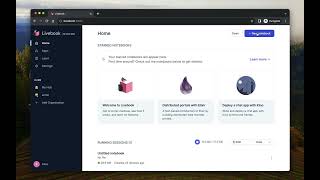
you can build all sorts of internal tools with live book you can build scripts that migrate data from one database to another you can build interactive apps you can build dashboards you can build tools that hook into your Phoenix application and coordinate something so anything that you can build with lifebook you can imagine and build with Life Book you can deploy to production and what I prepare today is that I got one of the learn apps so if you go to learn here to get started we have a bunch of guides and one of those guides build a chat app so what I did I'm going to do is that I'm going to get one of those chat apps and we are going to deploy to production so let's get started let's open the notebook so you can see this is a regular notebook and uh in order to deploy it we're going to click here on the rocket icon and usually before we run in production we want to take a look at the app and how it looks like okay so I'm going to to click launch preview and it's going to say well before you preview it you have to configure it so let's give it a slug we don't want password protection there are other things you can configure but I'm going to say I only want to render the reach output so only the reach widgets that we interact with so I'm going to click launch that's going to launch a preview here I'm going to click to look at this preview and we can see that this is a chat app I can type hello roll if I open this up on another tab I can Hogle and I can say hello there and you can see it all works as a chat app right so that's our notebook and we are now running a preview on our machine but now we want to deploy it for our team to use this okay how we going to do that we have two options the first one is manual Docker deployment the first one we're going to talk about and what this is going to do is that it's going to get the not notebook if you have any secrets and other information is going to package everything into a Docker file that you can go and manually deploy to production and it's a good way to get started but the issue with this approach is that it's manual every time you change a secret every time you change the notebook you have to update the docker file you have to generate it again and push the image to production so there is a lot of work involved in there so what we can do with live book team is that we can automate this whole process so let's do that so I'm going to click deploy with lifebook teams and what this is going to say is that well in order to deploy of Life Book teams you need to use a team's workspace you need to use an organization so we are going to change the workspace here to Acme which we have previously defined and now we can deploy and the first thing that we need to do is that we need to run machines inside our infrastructure to deploy the notebooks to so first we need to to create a deployment group we want an online deployment group because we want to push updates to it with the click of a button so let's call this production you can also specify a URL so if you're running inside your infrastructure you're going to have something like my uh internal tools. my company you usually have an internal URL we can leave this empty and update it later if you're not sure of the URL right now and we also want to enable clustering because if you are going to use multiple instances we want them to be clustered together together by default live book is going to generate instructions to enable clustering on fly and kubernetes so the automatic option is a good starting point and we can also choose a zero trust authentication provider okay so if you're running inside Cloud flare Google Cloud tail scale you can ask your infrastructure to do the authentication and you're going to tell Life Book to validate that for you otherwise if you're going to deploy to somewhere open you can choose basic off and add a basic username and password to your whole life book deployment okay but for this case for demo purposes let's choose none it's going to be fine so I'm going to uh start with the deployment group and you can see here that after we choose a deployment group it say look now you have to run an instance and then we have options for Docker fly iio and kubernetes and for today I'm going to use fly iio so it asks us to run a couple steps so the first step is to configure the instance so I'm going to um copy those instructions click here and you can see look you're are going to deploy this with this configuration and so on do we want to TW this no we don't want it to TW let's deploy okay so it has configured and now we are going to set the relevant secrets that's going to allow the apps server to connect live book teams okay and so let's execute those new instructions so it set the secrets I'm going to deploy and while it is deploying uh once the deploy is live we are going to automatically detect that so it already detected and we can deploy the The Notebook to production so we are going to click this and this is has deployed The Notebook already so it's saying look your notebook has been deployed to the machine that you started running and what is really cool about this is that what happens is that our The Notebook passes for live book teams uh we encrypt The Notebook so everything is encrypted and only your machine and your production machines actually knows the contents of the notebook uh the contents of the secrets and so on so it has been deployed let's check that it works so I'm going to copy and paste the URL here okay and you can see that the chat app is now running right this is running on fly could be running inside your infrastructure so I can click here and we can say that it works all right that's all and now you know if you want to do updates with the live to the notebook and deploy again you just click deploy with live book teams you click deploy again and you're going to have an updated version running production let's give this a try so I'm going to say let's add some exclamation marks to show our excitement to the notebook and let's say we want to deploy it again and now if we come back here and uh to The Notebook we can see that yes we have our exclamation marks and that's how easy it was to update a notebook running production so yeah that's all I had to show for today so live book teams allows you to deploy your notebook show production with the click of a button all you have to do is just set up your infrastructure once your infrastructure is up and running deploy away thank you for watching
Video description
José Valim shows how to deploy a Livebook app to your infrastructure with a button click, using Livebook Teams. Join the free Livebook Teams beta: https://forms.gle/k5ZCwCuJqpnru1Lc8 00:00 Intro 00:44 Livebook app configuration and local preview 01:45 Configuration for deploying a Livebook app 05:10 Deploying with Livebook Teams 06:07 Deploying a new version